Split PDF — take out the pages you need.
A range like 1-3, 7, 10-12 — or every page as its own file. The PDF never leaves this tab.
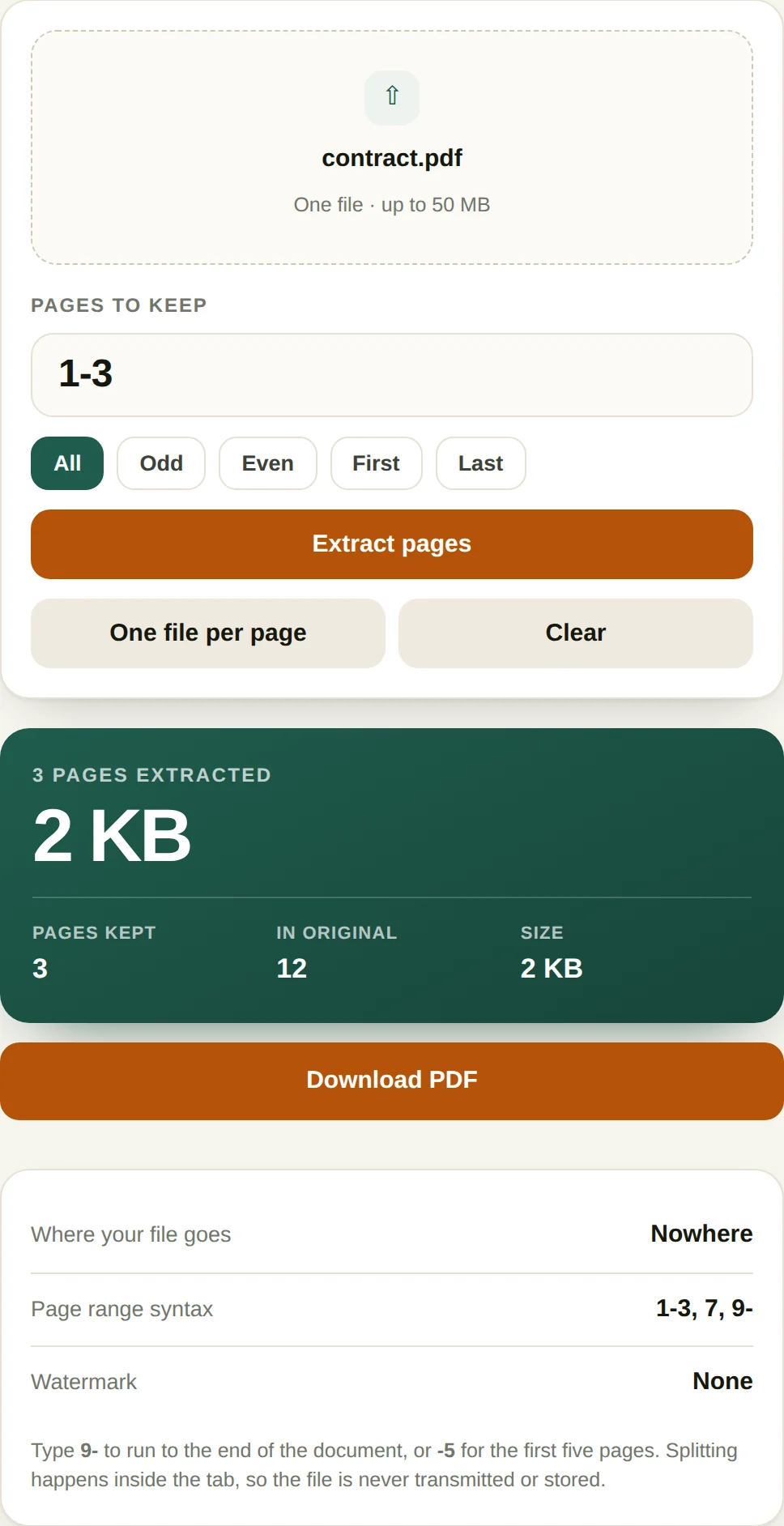
- Where your file goesNowhere
- Page range syntax1-3, 7, 9-
- WatermarkNone
Type 9- to run to the end of the document, or -5 for the first five pages. Splitting happens inside the tab, so the file is never transmitted or stored.
Pulling pages out of a PDF
Two different jobs get called "splitting": taking a few pages out of a long document, and breaking a document into one file per page. The tool does both, and neither involves a server.
- Drop in one PDF. The tool reads it locally and shows the page count, so you can confirm it loaded the version you expected before doing anything else.
- Type a page range. The syntax is the same one printers use. 1-3 is pages one to three. 7 is page seven on its own. 1-3, 7, 9- mixes them, and an open-ended range runs to the last page. The shortcut buttons fill in the first page or the last page for you.
- Extract. The result is a new PDF containing just those pages, in the order you listed them. Listing 5, 2, 5 gives you three pages with page five appearing twice — the range is a list of pages to take, not a filter.
- Or use "every page separately". This produces one file per page and lists them all as separate downloads. Useful for splitting a scanned batch into individual documents.
When this comes up
- Sending only the relevant pages. A 90-page report where the recipient needs pages 12 to 18. Sending the whole thing wastes their time and exposes everything else in it.
- Extracting a signed page. Pulling the executed signature page out of a contract to attach to an email, without circulating the full agreement.
- Separating a scanned batch. A stack of invoices scanned in one pass becomes one file per invoice, ready to be named and filed.
- Removing a cover sheet or an appendix. Typing 2- skips the cover, and 1-20 drops everything after page twenty.
A worked example: seven pages out of ninety
A 90-page report where the recipient needs pages 12 to 18: type 12-18 and the output is a seven-page file. Pages come out in the order listed, so 18, 12-17 puts page 18 first — the range is a list of pages to take, not a filter to apply.
Page numbers are 1-based and match what the viewer shows, not the number printed on the paper. A report with an unnumbered cover has viewer page 12 on printed page 11, and that one-page offset is the most common reason a split comes out wrong. Scroll to the page in any reader and trust the page field, not the footer.
File size is the part that surprises people. Extracting two pages from a 40 MB document can still give a 15 MB file, because a page that uses an embedded font drags the whole font subset along, and shared images may be referenced rather than copied. That is normal PDF behaviour, not a bug in the splitter.
Where splitting goes wrong
- Reversed ranges. 18-12 is not a range, it is an error, and saying so beats guessing what was meant.
- Pages past the end. Asking a 90-page file for 200-210 returns nothing. A tool that hands back an empty PDF wastes ten minutes of your afternoon.
- Password-protected files. The browser cannot decrypt them, so unlock first. Splitting does not remove protection.
- "One file per page" on a 400-page scan produces 400 downloads. Use the range mode, or split in batches.
Questions
What range syntax does it accept?
1-3 for a run, 7 for a single page, 9- for everything from page nine onward, and commas to combine: 1-3, 7, 9-. Spaces are ignored. Out-of-range page numbers are reported rather than silently dropped.
Can it split a password-protected PDF?
Not while the password is still on it. Remove the password first — most PDF readers can do this if you know the password — then split the unlocked file. A password-protected file cannot even be read by the browser, so the tool will report it as unreadable rather than fail silently.
Does splitting lose quality?
No. Pages are copied as objects into a new file, not re-rendered. Everything from the original — text, vector art, image compression — survives intact.
Why is the extracted file sometimes almost as large as the original?
Because PDF resources such as embedded fonts and images are shared across pages, and a page that uses a font pulls the whole font subset with it. Extracting two pages from a 40 MB document can still produce a 15 MB file. That is normal and is not a sign of a problem.
More PDF tools
All-Access — every tool, one payment
This tool is free and stays free. All-Access removes the upgrade prompt and unlocks every tool on this site.
- Every current tool, fully unlocked
- Every tool added later, included free
- No ads, no signup, no subscription