Image converter — JPG, PNG and WebP.
A folder of PNG screenshots that needs to be JPG. A photo that has to go on a website as WebP. Convert the batch in one go.
- Where your images goNowhere
- Batch limitYour memory
- WatermarkNone
Every image is decoded by the browser, redrawn on a canvas and re-encoded in the format you pick. The only thing that travels is the page itself. Note that this is a real re-encode, not a rename — so a 4 MB PNG saves far more as JPG than as PNG, and converting the same file twice loses a little quality each time.
Converting between image formats
The three formats are not interchangeable containers for the same data. Each was designed for a different kind of picture, and picking the wrong one is the reason converted files sometimes look worse or come out larger than the original.
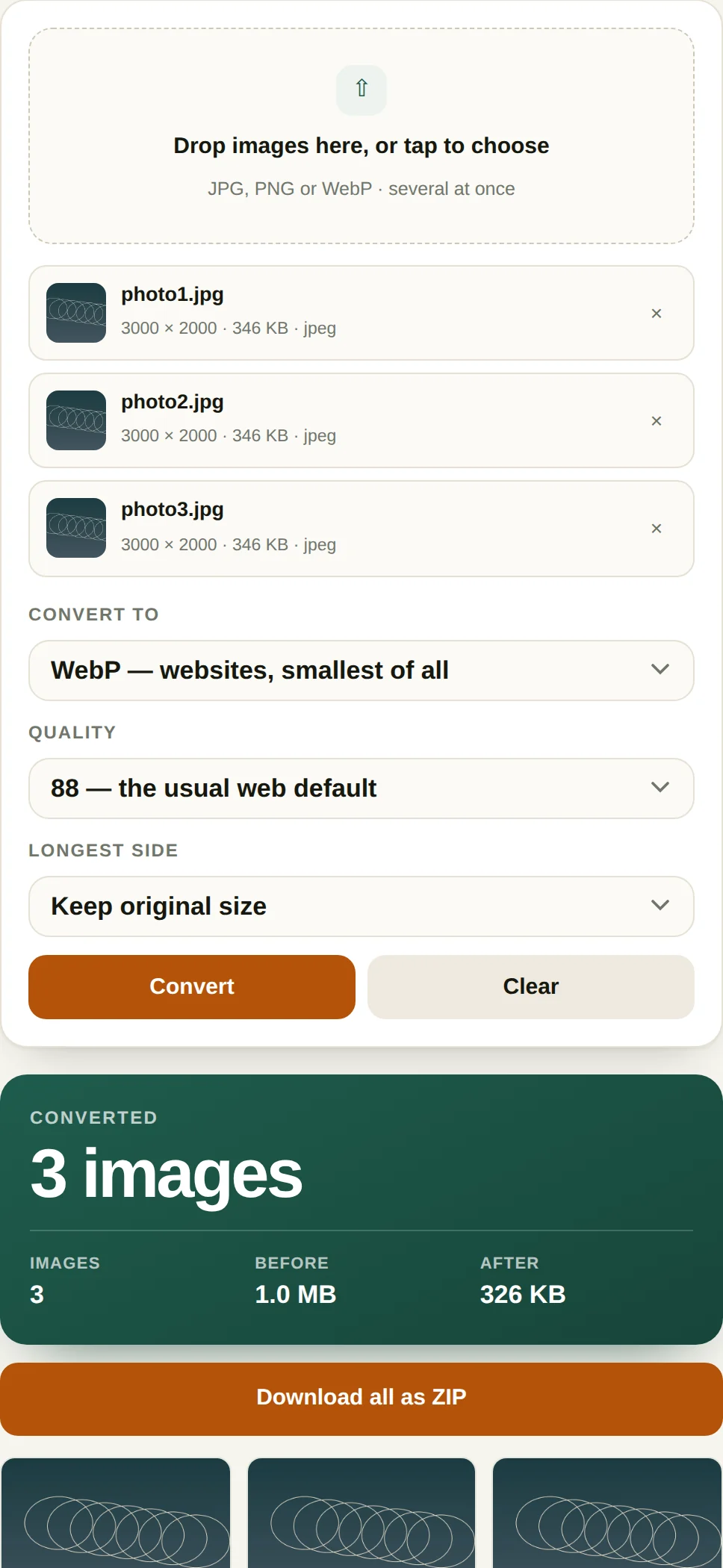
- Drop the files in. JPG, PNG and WebP all work, and you can mix them in one batch — a folder of screenshots and a few photos can convert to the same output format in one pass.
- Pick the output format. JPG for photographs, PNG when transparency or exact pixels matter, WebP for anything that will be served on a web page.
- Set quality. This only applies to JPG and WebP. 88 is the value most tools use and the point where the loss stops being visible on a normal screen.
- Cap the size if you need to. "Longest side" scales the image down before encoding, which usually saves more bytes than dropping quality. A 4000 px photo at 1920 px is a quarter of the pixels.
When this comes up
- A site that only accepts JPG. Many upload forms and email clients still reject PNG or WebP. Converting first avoids the "unsupported file type" message.
- Preparing images for a website. WebP at quality 88 is typically a quarter to a third smaller than the JPG it replaces, and it is the single easiest page-speed win available.
- Screenshots for documentation. PNG keeps text and interface edges crisp; JPG turns them into a haze of grey squares. If the screenshot has to be JPG, keep quality at 95.
- Shrinking photos before sending. A 6000 px photo from a modern phone is 8 MB and useless at that size in an email. 1920 px at quality 88 lands under 400 KB and looks identical on any screen.
A worked example: three photos, six outputs
Three 3000 × 2000 photos totalling 1.0 MB, converted every way the tool allows:
| Output | Total size | vs original |
|---|---|---|
| WebP, quality 88, original size | 326 KB | −67% |
| WebP, quality 88, 1920 px | 189 KB | −81% |
| JPG, quality 88, original size | 709 KB | −30% |
| JPG, quality 88, 1920 px | 348 KB | −65% |
| PNG, original size | 3.0 MB | +200% |
Three things stand out. First, WebP at the same quality is less than half the JPG on this set — 326 KB against 709 KB. That is a larger gap than the 25 to 35 percent usually quoted, because these particular images are smooth gradients, which is exactly what WebP's prediction handles well; on a busy photograph the advantage shrinks toward the usual range. Second, PNG tripled the file size for no visible gain, which is the clearest possible argument against using PNG for photographs. Third, and most useful in practice: capping the longest side at 1920 px saved more than dropping quality did — 709 KB down to 348 KB without touching the quality slider.
That last point is the one worth remembering. A phone photo is 4000 px wide and almost nobody views it larger than a laptop screen. Resizing is a straight reduction in pixels with no compression artefacts, so it is always the first lever to pull, and the quality setting is the second.
Where format conversion goes wrong
- Transparency turning black. JPG has no alpha channel. Some converters fill transparent areas with black, which destroys a logo on a white page. This one fills with white.
- PNG for photographs. A 12 MP photo as PNG can be 20 MB where the JPG was 3 MB, with no visible difference. PNG's lossless compression cannot exploit the smooth gradients in a photograph.
- Converting repeatedly. Every JPG and WebP encode is lossy. Edit, export once, convert once. A file that has been through five round trips shows visible blocking in flat areas such as sky.
- Assuming WebP is universally safe. Support is above 97% in browsers, but some older email clients, CMS uploaders and desktop apps still reject it. For an attachment, JPG is the safer choice.
Questions
Which format should I pick?
JPG for photographs, where its lossy compression is invisible and the file is smallest. PNG when you need transparency or pixel-exact output such as screenshots of text, logos or charts. WebP when the image goes on a website: it is typically 25 to 35 percent smaller than JPG at the same visual quality and every current browser supports it.
Why did my transparent PNG turn white in JPG?
JPG has no alpha channel, so transparent areas have to be filled with something. This tool fills them with white by default, because the alternative that most converters use, black, ruins logos and screenshots. Convert to PNG or WebP instead if the transparency needs to survive.
Can I convert HEIC photos from an iPhone?
Not directly. Browsers cannot decode HEIC without an extra codec, so this tool will report that the file could not be read. Change the iPhone camera setting to Most Compatible, or share the photo through an app that converts it to JPG, which iOS does automatically in most cases.
Does converting lose quality?
Converting to JPG or WebP re-encodes the image, so there is one generation of loss, which is why converting the same file repeatedly is a bad idea. Converting to PNG is lossless from the decoded pixels, but it cannot recover detail that a previous JPG compression already removed.
More PDF tools
Free: 3 runs a day, first 2 images of a batch
Both limits go away with All-Access, along with the counter on every other file tool. One payment, no subscription.
- Unlimited runs, full-length output
- Every other tool included, and everything added later
- No counter, no ads, no signup