PDF to JPG — every page as an image.
Screenshots for a slide, a page for a chat message, images for a website. Render the pages you need, at the size you need.
- Where your PDF goesNowhere
- Text stays searchableNo — it becomes pixels
- WatermarkNone
Each page is drawn onto a canvas inside this tab, then saved as an image. The PDF is never transmitted, so there is no copy to delete. One honest limit: the moment a page becomes an image, the text in it stops being text — it can no longer be selected, searched or copied.
Turning PDF pages into images
A PDF page is a set of drawing instructions, not a picture. To get a picture out you have to render it at a chosen size, and that size is the only decision that really matters. Everything else follows from it.
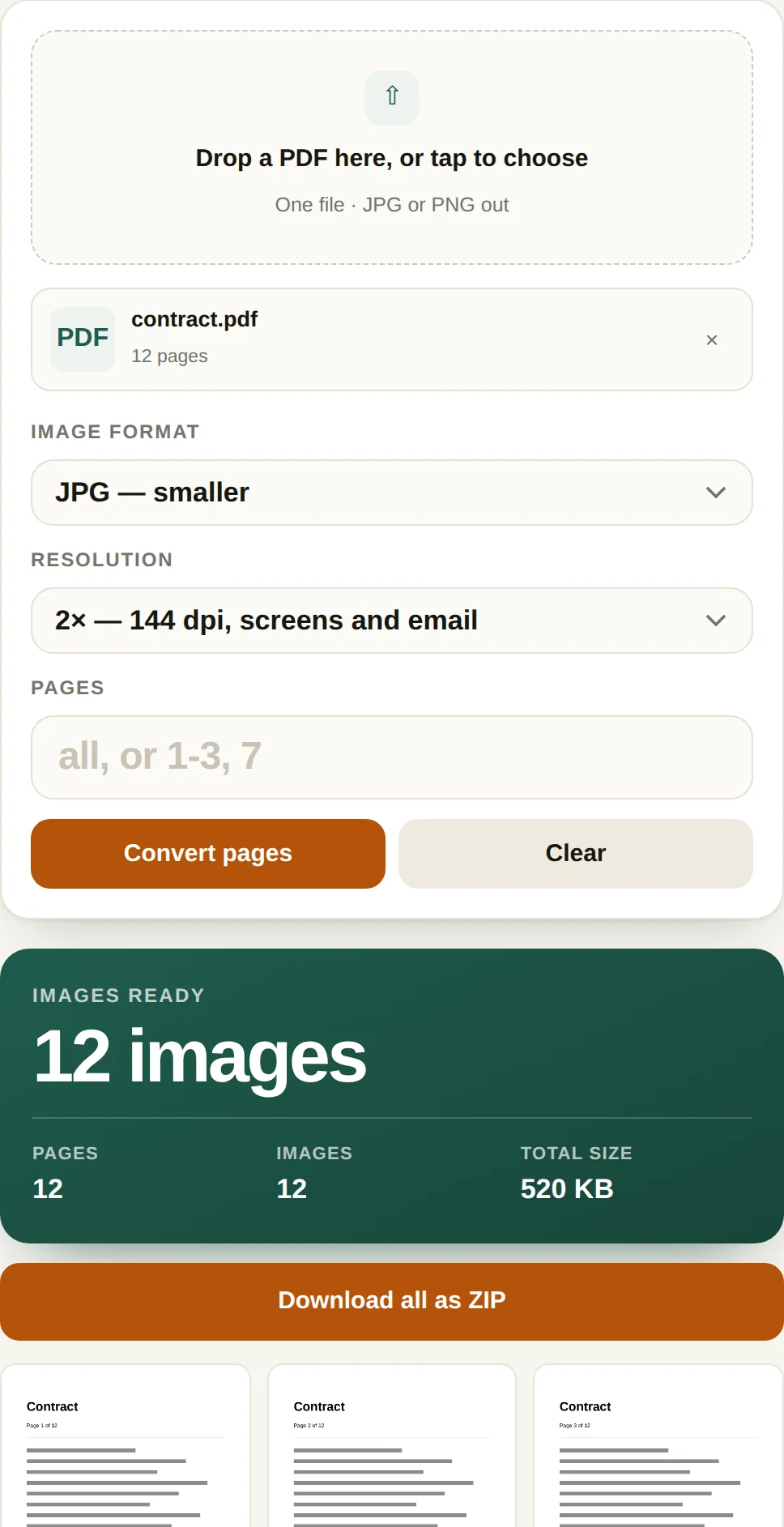
- Drop the PDF in. The first page is read immediately and the total page count appears, so you can confirm it is the right file before spending time on a conversion.
- Choose a format. JPG is smaller and right for photographs and page scans. PNG is lossless and sharper for pages that are mostly text, at roughly three to five times the file size.
- Choose a resolution. 1× gives one pixel per PDF point (72 dpi), 2× doubles it, 3× triples it. A typical A4 page is 595 × 842 points, so the three settings produce roughly 595, 1190 and 1785 pixels across.
- Narrow the pages if you want. Leave the field empty for the whole document, or type
1-3, 7to render four pages out of a hundred.
When this comes up
- Putting a PDF page into a slide deck. Slides accept images, not PDFs. Rendering at 2× gives a page that stays sharp when projected.
- Sending one page in a chat. Nobody opens a 40-page attachment to read page 3. Convert just that page and paste the image.
- Building a thumbnail or preview. A 1× render of page one is a few tens of kilobytes and good enough for a card, a listing or an email preview.
- Feeding a page to a tool that only takes images. OCR, image editors, design mockups and some upload forms accept JPG and nothing else.
A worked example: twelve pages at three sizes
A twelve-page A4 contract, mostly text with rules and a signature block, rendered as JPG at each of the three settings on an ordinary laptop:
| Setting | Each page | All twelve | Render time |
|---|---|---|---|
| 1× — 72 dpi | 23 KB | 281 KB | 0.33 s |
| 2× — 144 dpi | 43 KB | 520 KB | 0.32 s |
| 3× — 216 dpi | 87 KB | 1.0 MB | 0.82 s |
The jump from 2× to 3× costs twice the file size for 50% more pixels, which is why 3× is worth it only for pages that will be printed. Notice too that rendering time barely moves between 1× and 2× — the page has to be parsed and drawn either way, and the pixel count is not the bottleneck at these sizes.
PNG behaves differently, and not the way the usual advice suggests. On this document a single page at 1× is 18 KB in PNG against 23 KB in JPG, because large flat areas of white compress well without loss. At 3× the order reverses: 111 KB in PNG against 87 KB in JPG. PNG wins on simple, sparse pages; JPG wins as resolution rises and the page gets busy. On a scanned photo page PNG loses badly at every size.
There is a second cost people forget. Fifty pages at 3× is fifty canvases of roughly 1785 × 2526 pixels held in memory at once, which is close to a gigabyte. On a phone that fails quietly. Converting in batches of ten pages and merging the ZIPs afterwards works fine, and the page range field exists for exactly that.
Where PDF-to-image goes wrong
- Rendering at 1× and then zooming. This is the most common disappointment. The image is exactly as sharp as it was rendered and no sharper; zooming in a viewer shows the pixels, not the text.
- Choosing PNG for a photographic page. A scanned photo page in PNG can be ten times the size of the JPG with no visible gain. PNG wins on text and line art, JPG wins on photographs.
- Assuming the page numbers match. A document with a cover page often has printed numbers that are one or two behind the actual PDF page index. Check page one before converting a range.
- Losing what made the PDF useful. Links, form fields, selectable text and bookmarks all disappear. If the recipient needs to search or fill the document, send the PDF.
Questions
Why is the JPG blurry compared to the PDF?
A PDF stores text as instructions, so it stays sharp at any zoom. A JPG stores pixels, so it is only as sharp as the resolution you render at. At 1× a page that is 595 points wide becomes 595 pixels, which looks soft on a high density screen. Use 2× or 3× for anything that will be read or printed.
What resolution should I choose?
1× is 72 dpi and matches the PDF's own page size in pixels, which is fine for thumbnails and quick previews. 2× is 144 dpi and is the sensible default for screens and email. 3× is 216 dpi, close to what a home printer wants for a full A4 page.
Can I convert only some pages?
Yes. Enter a range like 1-3, 7 before converting and only those pages are rendered. The page numbers refer to the PDF's own numbering, which may differ from the numbers printed on the page.
Does this work with password protected PDFs?
PDFs that are encrypted with an open password cannot be read without it, and this tool will report a failure rather than prompting. PDFs that only restrict printing or copying usually open normally, because those restrictions are advisory flags rather than encryption.
More PDF tools
Free: 3 runs a day, first 2 pages each
Both limits go away with All-Access, along with the counter on every other file tool. One payment, no subscription.
- Unlimited runs, full-length output
- Every other tool included, and everything added later
- No counter, no ads, no signup